Dynamics 365 Finance 10.0.49: Retaining Budget Check Indicators on Finalized Documents
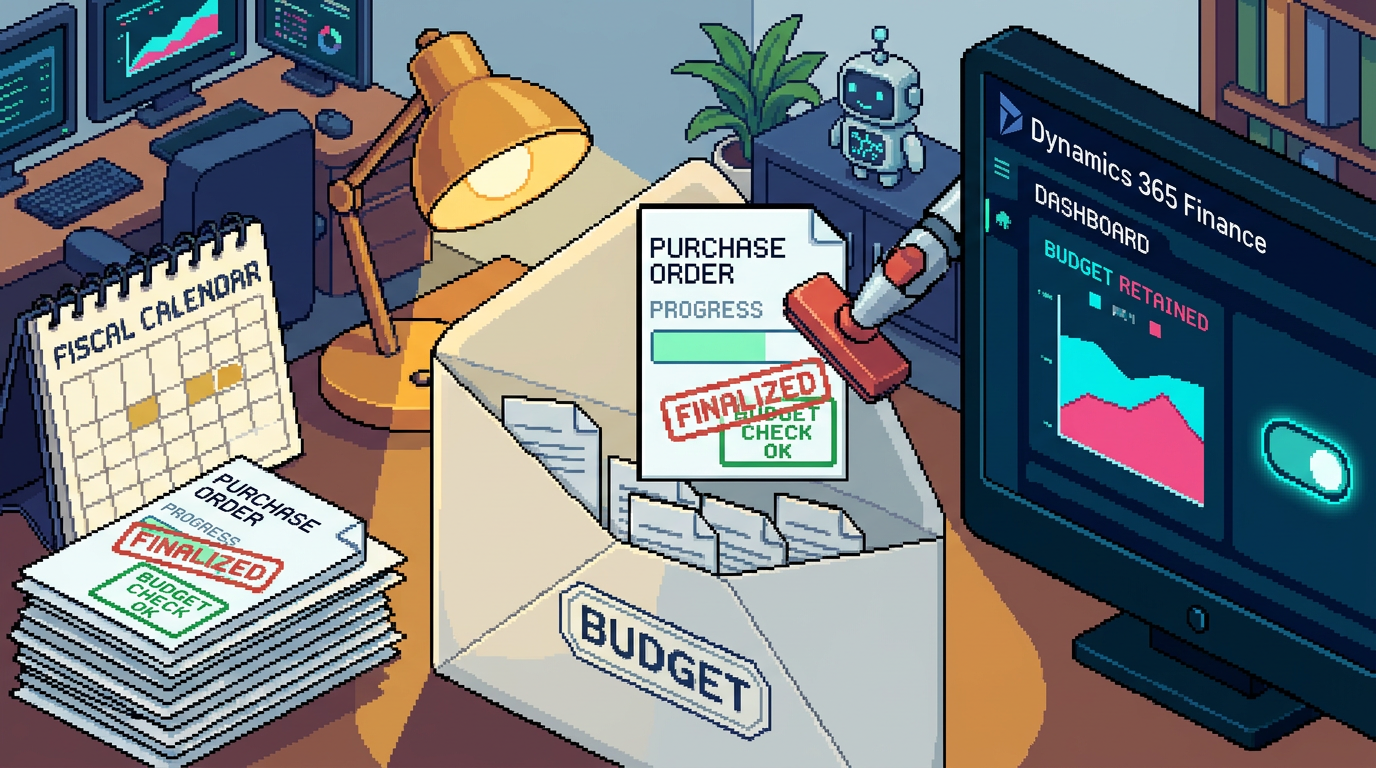
Dynamics 365 Finance 10.0.49 introduces a budgeting feature that addresses a small but important visibility gap. Budget check indicators can remain available after a budget-controlled document has been partially consumed and subsequently finalized. This article explains the operational impact, affected scenarios, and the validation work recommended before enabling the feature in production.
- Author
- Jeno Jegathees
- Published
- 18 Sept 2026
- Updated
- 18 Sept 2026
- Reading time
- 7 min
Overview
Microsoft Dynamics 365 Finance 10.0.49 adds a feature named Preserve budget check indicators for partially consumed and finalized documents.
The change concerns the visual budget check status shown on budget-controlled documents. Before this enhancement, the indicator could disappear when a document had been partly consumed and was then finalized. This made the document appear to have no remaining budget-check context, although part of its value had already affected the budget.
With the new option enabled, the system can retain the indicator so that users reviewing the finalized document can still recognize that budget processing took place.
This is primarily a traceability and user-interface improvement. Based on Microsoft's release description, it should not be interpreted as a new budget reservation, consumption, relief, or posting mechanism.
The previous pain point
Budget-controlled purchasing documents commonly pass through several stages. For example, a purchase order might be confirmed for its full amount, partially invoiced, and then finalized because the remaining quantity will no longer be delivered.
In this situation, part of the purchase order has already consumed or affected budget funds. However, under the previous behavior, finalization could remove the visible budget check indicator from the document.
That created practical questions for users and support teams:
- Was the document ever checked against budget?
- Did the invoiced portion consume budget funds?
- Was the indicator removed because of finalization or because budget control did not run?
- Is the document state consistent with the budget control statistics?
- Does the missing indicator point to a configuration or processing problem?
An experienced consultant could investigate the budget control history, source documents, accounting distributions, invoices, and budget balances. Nevertheless, the document itself no longer gave the user a clear visual cue.
The issue was especially confusing during period-end review, purchase order cleanup, budget owner inquiries, and support investigations. The absence of an indicator could be interpreted as the absence of budget impact, even when that conclusion was incorrect.
What changes in version 10.0.49
After the feature is enabled through Feature management, a parameter named Preserve budget check indicators becomes available on the Budgeting parameters page.
Navigation path
BudgetingSetupBudgeting parameters
When the parameter is activated, the budget check indicator can remain visible for supported documents that meet both of these conditions:
- The document has been partially consumed.
- The remaining part of the document is subsequently finalized.
Microsoft identifies two relevant examples:
- A budget-controlled purchase order is partially invoiced and later finalized.
- A general budget reservation line is partially consumed and later finalized.
The retained indicator gives users a more consistent representation of the document's budget history. It does not leave them relying solely on the current open amount or final document status to infer whether budget control was involved.
What the feature does not necessarily prove
A retained indicator should not be treated as a complete explanation of the budget transaction lifecycle. It indicates that budget checking or budget impact occurred, but users may still need the underlying budget control inquiry and source-document history to determine:
- The amount originally checked.
- The amount consumed.
- The amount relieved during invoicing or finalization.
- The budget dimensions used for the check.
- Whether any warnings, errors, or overrides occurred earlier.
Microsoft's brief description does not define the exact indicator state, color, tooltip, or drill-down behavior for every document type. It also does not state whether previously finalized documents are updated retrospectively.
These points should be treated as assumptions to verify in a sandbox running version 10.0.49.
Why this is an improvement
The main improvement is continuity of information. Finalization is an operational action that closes an outstanding document balance. It should not make the document's earlier budget relevance less apparent to a user reviewing it later.
Retaining the indicator can improve several activities:
- Operational review: Buyers can see that a finalized purchase order had already progressed through budget control.
- Budget owner support: Finance teams have a clearer starting point when explaining why funds were consumed or released.
- Period-end cleanup: Users finalizing old commitments are less likely to misinterpret the resulting document display.
- Audit preparation: The source document retains a visible connection to the budget control process, although it does not replace detailed audit evidence.
- Incident analysis: Support teams can distinguish a visibility issue from a document that may never have been budget checked.
The feature therefore removes an avoidable inconsistency between the document's lifecycle and its visual status.
Who is affected
Business roles
The following roles are most likely to notice the change:
- Purchasing agents who partially invoice and finalize purchase orders.
- Budget managers who monitor commitments and actual expenditure.
- General ledger and budgeting teams responsible for budget control.
- Accounts payable users investigating invoice and purchase order relationships.
- Financial controllers reviewing open commitments and period-end adjustments.
- Internal control or audit teams tracing budget-controlled transactions.
- Application support teams handling apparent discrepancies in document status.
Processes
The feature is relevant where budget control is active and documents can be partly consumed before their remaining value is finalized. The primary processes to review are:
- Purchase order invoicing and finalization.
- General budget reservation consumption and finalization.
- Commitment cleanup before period close or year-end.
- Budget control inquiries and exception investigation.
- Document history reviews after finalization.
The release description refers to budget-controlled documents more generally, but it does not provide a complete list of supported document classes. Any organization relying on other document types should test them individually rather than assuming identical behavior.
Legal entities
Budgeting parameters and budget control setup are maintained in a legal-entity context. Each company using budget control should therefore be assessed separately.
Do not assume that enabling or configuring the option in one legal entity gives the same result in another. Legal entities can differ in:
- Budget control activation.
- Budget dimensions and rules.
- Source-document usage.
- Purchase order processing policies.
- General budget reservation configuration.
- Security roles and access to budget information.
The exact default value and company scope of the new parameter should be confirmed after deployment. Microsoft's release description does not specify whether the parameter is automatically enabled or whether existing companies retain it as disabled.
Preparation before the update
1. Identify relevant legal entities
Create a list of companies that use budget control, purchase orders, or general budget reservations. Prioritize entities with frequent partial invoicing and commitment cleanup.
2. Capture the current behavior
In a pre-update environment, record examples of:
- A fully open budget-controlled purchase order.
- A partially invoiced purchase order.
- A partially invoiced and finalized purchase order.
- A partially consumed general budget reservation line.
- A partially consumed and finalized reservation line.
Capture the displayed indicator, document status, remaining amount, accounting distributions, and related budget control inquiry results.
3. Define expected results
The acceptance criterion should focus on consistent visibility. For example:
- The document passes budget control.
- Part of the document is consumed.
- The unconsumed remainder is finalized.
- The budget check indicator remains visible afterward.
- Budget balances reconcile to the expected consumed and relieved amounts.
4. Review security and procedures
Confirm which roles can access Feature management and Budgeting parameters. Update internal procedures if screenshots or instructions currently state that the indicator disappears after finalization.
Actions after the update
1. Enable the feature in a sandbox
Use Feature management to locate Preserve budget check indicators for partially consumed and finalized documents and enable it in a non-production environment first.
Then review the new Preserve budget check indicators option in Budgeting parameters.
2. Run a focused regression test
Test at least the following scenarios:
| Scenario | Expected validation |
|---|---|
| Purchase order passes budget check and remains open | Existing indicator behavior remains stable |
| Purchase order is partially invoiced | Indicator and budget amounts remain consistent |
| Partially invoiced purchase order is finalized | Indicator remains visible when the parameter is enabled |
| General budget reservation is partially consumed | Consumption is reflected correctly |
| Remaining reservation amount is finalized | Indicator remains visible when supported |
| Document is fully consumed before closure | No unintended change to existing display or balances |
| Budget check fails or produces a warning | Existing error and warning behavior remains understandable |
Repeat the critical scenarios with the parameter disabled to establish that the option controls the observed behavior.
3. Reconcile data, not only icons
For each test, compare:
- Source-document totals.
- Invoiced or consumed amounts.
- Finalized amounts.
- Budget control inquiry results.
- Remaining budget funds.
- Voucher and subledger records where applicable.
A successful visual test is insufficient if the underlying amounts do not reconcile.
4. Check historical documents
Open documents that were finalized before the feature was enabled. Determine whether their indicators change automatically, remain unchanged, or only reflect the new behavior after another supported action.
The release information does not confirm retrospective treatment, so this must be documented as a sandbox finding rather than assumed.
5. Deploy by controlled scope
After validation, enable the feature and parameter according to the organization's release process. Where possible, start with a representative legal entity and confirm the result before completing the rollout.
Consultant assessment
This is a targeted usability correction rather than a redesign of budget control. Its value lies in preserving meaningful document context after a partial transaction is closed.
Organizations using budget control should consider enabling it, particularly where partially invoiced purchase orders and general budget reservations are common. The deployment effort is likely to be limited, but testing must cover both the visible indicator and the underlying budget amounts.
The most important implementation principle is to separate presentation from accounting. A retained budget check indicator improves interpretation of the source document; budget inquiries and reconciliations remain the authoritative tools for validating the financial effect.